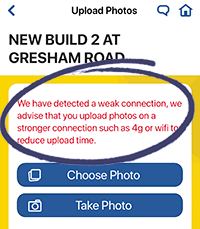
Take photos on site and attach them to your Project. Keep a visual record of what's going on.
Using this section of the app you can upload photos from your mobile device and it will automatically place them into your Project. Things happen on site, and you'll need to keep a visual record of what's going on.
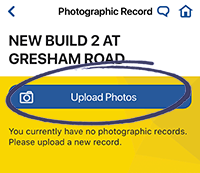
When you tap 'Upload Photo' you get the option to choose whether to take a new photo there and then. Alternatively if you want to upload a photo that you've already taken, you can select one from your camera roll instead.

Once you've chosen your photo, you can add a note to it and tap 'Upload' to upload it and attach it to your Project.
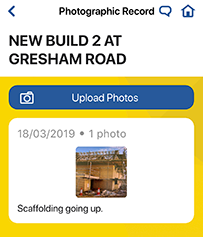
Once your photo has been uploaded you will see it appear in the Photographic Record. You can tap on the thumbnail image to make it bigger.
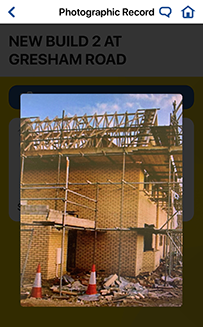
Any photos that you upload will also be synchronised with the web app. The company administrator will be able see both the image and the note on the photo tab of that particular Project.
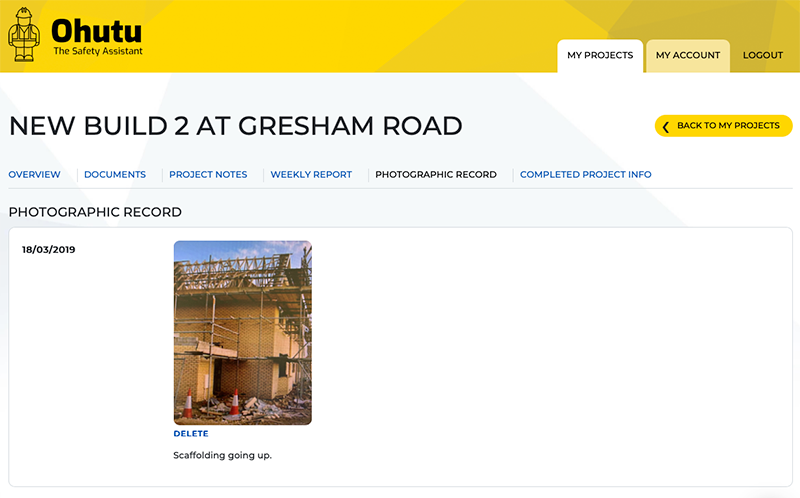
To maintain an audit trail, photos can only be deleted by a company administrator via the web app. Photos can't be amended or deleted from within the mobile app.
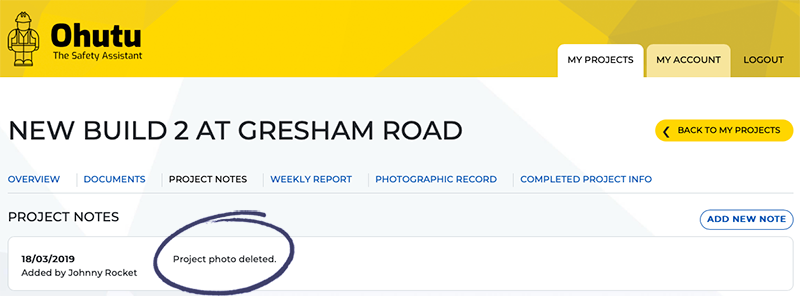
When you delete a photo from within the web app it also automatically adds a project note. This is to ensure that the Project maintains its audit trail.
Note:
The photos on your phone can be very large. The length of time they take to upload will depend on your mobile signal and whether you are on WiFi. If possible, use WiFi or 4G to ensure the fastest connection.
If the app detects that you're on a slow connection it will show you a warning. You may want to try uploading the photos when you have a better signal, otherwise it could take a while.